Sort your files by how hard they are to replace, not by how big they are
Size is the wrong axis, and it is the one everybody starts with. Sort instead into three heaps.
Irreplaceable: photographs, video of people, documents, anything you made. If this is gone, it is gone, and no purchase brings it back.
Costly to replace: a media collection ripped from discs you still own, project files that could be rebuilt with weeks of work, software libraries. Losing this is a bad month, not a permanent loss.
Replaceable: anything downloadable again, operating systems, caches, copies of copies. Losing this is an afternoon.
Almost every layout decision that follows comes out of these three heaps, and so does every decision about copies. The heap that matters is usually the smallest one, which is the part people find surprising and the part that makes the whole problem tractable.
Split the working set from the archive, and put each on the drive it suits
The working set is what you are opening, editing and saving this month. It is small, it is touched constantly, and it is where a fast drive changes the feel of a machine.
The archive is everything else — finished, kept, opened occasionally. It is large, it is read far more often than written, and it does not benefit from the fastest storage you own.
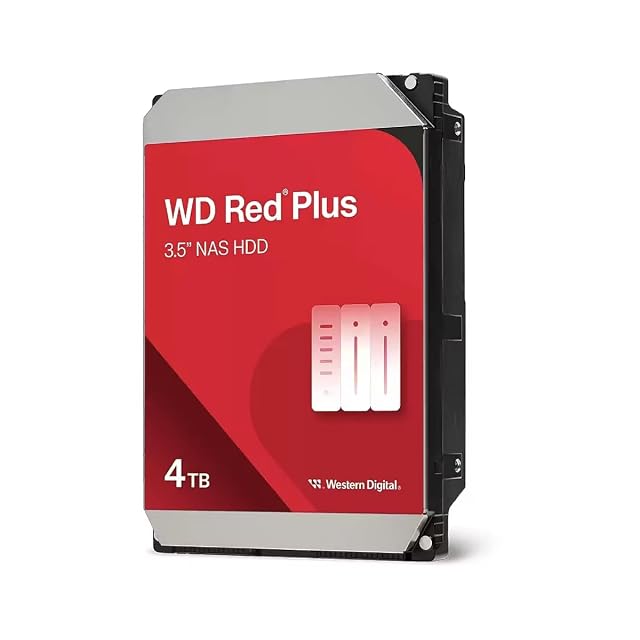
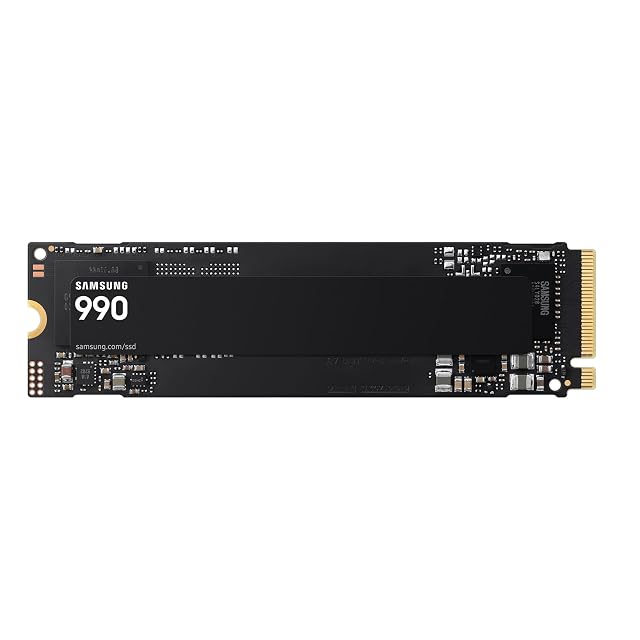
Solid-state drives are where the working set belongs. Mechanical drives are where the capacity is, and an archive is the workload they were built for. The mistake in both directions is common: an enormous solid-state drive holding files nobody has opened in three years, or a working project on a mechanical drive that spends its day seeking.
Where a NAS enclosure is in the picture, the same split applies inside it. Some enclosures accept a solid-state card alongside their mechanical bays, and the sensible job for that card is the part of the workload that is small and busy — not a second archive.
Read what the maker publishes about the drives, and read the right figures
Three figures get confused with one another on a drive’s specification sheet, and the site’s position on them is that they are three separate things.
TBW is a quantity of data written, published for solid-state drives. MTBF is a statistic about a population of drives, published in hours. Warranty is a commercial term with its own conditions. None of the three is a life expectancy, and a drive that publishes one of them has not published the other two.
For mechanical drives destined for an enclosure that runs continuously, the figures the maker publishes about that use — a workload rating in terabytes per year, and whether the drive is specified for continuous operation — are the ones that describe the job. So is the recording method: some drives use shingled recording, which changes how they behave when rewriting, and makers that use it publish the fact.
Capacity itself is published by the maker in the maker’s unit. A machine that displays in units of 1024 shows a different figure for the same hardware, and both descriptions are correct. Plan against the figure on the box, and compare drives in one unit rather than two.
Choose the number of bays before you choose the number of terabytes
Bay count is a decision about the next five years; capacity is a decision you can revisit at any time by buying a larger drive.
A single-bay box is a place to put files. It is honest about what it is, and the whole of its protection story lives elsewhere.
A two-bay box can hold two independent volumes, or one volume mirrored across both. Mirroring gives you the capacity of one drive and keeps the volume readable when one of them fails.
Four bays and up is where distributed redundancy becomes worthwhile, because a scheme that gives up one drive’s worth of capacity costs proportionally less as the count rises. It is also where the enclosure stops being quiet, and where the noise and heat pages become relevant.
Buy the bays empty if the enclosure allows it and fill them over time. An enclosure with a spare bay is an upgrade path; an enclosure that is full on the day it arrives is a migration waiting to happen.
Understand what the redundancy is doing for you, and what it is not
A redundancy level is part of the storage layout, and it belongs in this decision. It is not part of the safety plan, and it does not belong in that one.
What a mirrored or distributed scheme gives you is continuity: the volume stays readable when a drive fails, and you replace the drive without stopping. That is genuinely valuable, and it is what the feature was designed to deliver.
What it does not touch is everything that reaches every drive at once — a deletion, an application that writes over a folder, hostile software that encrypts what it can see, a power event, a theft, a fire. All of those arrive on every drive in the box simultaneously, because the box is doing exactly what it was told. Copies held elsewhere are what covers them, and they are a separate purchase, a separate routine and a separate page.
Rebuilding after a replacement also takes time proportional to the size of the drives, and during that time the array is doing sustained work. That is a reason to plan for it, not a reason to avoid redundancy.
Name the top-level folders once, and design them so you never reorganise
The layout that survives is the one where a new file has an obvious home without anybody thinking. A few rules make that likely.
Put the split you decided on at the very top: working and archive as separate top-level folders, or separate shares on an enclosure. Then organise inside each by something that never changes its mind — a year, a project, a person — rather than by a status that moves, because a folder called current is a folder that has to be re-sorted every few months.
Keep the irreplaceable heap in as few places as possible. It makes the copy routine simpler, and a simple copy routine is one that actually runs.
Avoid a layout that depends on one application’s own library. If the folder structure only makes sense inside a particular program, moving to another program later means untangling it.
Leave headroom, and treat the last part of every volume as unavailable
A volume that is nearly full is a volume that behaves badly: mechanical drives fragment and seek, solid-state drives have less room to shuffle blocks internally, and enclosures that keep snapshots or versions need free space to keep them in.
Plan capacity as though a portion of every drive did not exist. Where an enclosure keeps file versions or snapshots, read what the maker says about how much space they consume, because those versions are the feature that saves a file somebody overwrote — and they only exist while there is room for them.
Write the layout down, and put the note where the equipment is
One page: which drive or share holds which heap, what each is called, which of them is copied elsewhere and how often, and what the drive models and capacities are.
The value of that page is not tidiness either. It is that a layout is a set of decisions, and in two years the decisions will be invisible — you will see only folders, with no record of why files were put where they were, and the reorganisation you swore you would never do will start to look reasonable.
The questions that come up before an order
Should the archive live on spinning drives or on solid-state?
For anything large and rarely opened, mechanical drives are still where the capacity is, and an archive is exactly the workload that does not care about the difference in access time. Solid-state earns its price where files are opened, edited and saved constantly, which describes a working set rather than an archive.
How much free space should I leave on a drive?
Enough that the drive is never close to full, and more on solid-state than on mechanical. Makers explain in their own documentation why a nearly full solid-state drive has less room to work with internally. The practical version is to treat the last part of any drive as unavailable and to plan capacity as though it were.
Is a two-bay enclosure with a mirror enough on its own?
It is enough to keep working through the failure of one drive, which is what it is designed for. It does nothing about a file deleted by mistake, a folder overwritten by an application, hostile encryption, theft or fire, because all of those reach both drives at the same moment. Copies in another place are a separate purchase and a separate decision.
Last reviewed 10 September 2026