Skip to content

A first NAS enclosure, chosen on bays before terabytes

The enclosure is a five-year decision and the drives inside it are not, which is why bay count deserves more thought than capacity. The second decision is the software, because that is what you will actually use every week — and the third is being clear about what redundancy in this box is for.

Choose the bay count first, because it is the part you cannot change

Capacity is revisitable at any moment by buying a bigger drive. Bay count is not: adding a bay means a new enclosure and a migration, and migrations are the job nobody volunteers for.

One bay is a place to put files, and every question about protection lives outside the box entirely.

Two bays can hold two independent volumes or one mirrored volume, which gives the capacity of one drive and keeps the volume readable when the other fails.

Four bays and up is where distributed redundancy starts to make sense, because giving up one drive’s worth of capacity costs proportionally less the more drives there are. It is also where the unit becomes audible.

Where the enclosure allows it, buy it empty and fill it over time. A spare bay is an upgrade path; a unit full on arrival is a migration with a date on it.

Be exact about what the redundancy is for

This is the point on which the site does not equivocate.

A redundancy level buys continuity: the volume survives the failure of a drive, and you replace that drive without stopping. That is worth having and it is what the feature was designed to deliver.

It does nothing about the events that reach every drive at once — a file deleted, a folder overwritten by an application or a synchronisation running the wrong way, software encrypting what your account can reach, a power event, a theft, a fire. Nor does it help if the enclosure itself fails in a way that makes the array unreadable outside that machine.

So the enclosure and the copies are two purchases, not one. What the enclosure can contribute to the second is snapshots or file versioning, which keep previous states of a file and are the feature that recovers something overwritten. Check whether the enclosure offers them, how far back they reach and how much space they need.

The software is what you will live in

Two enclosures with identical hardware are different products if their software differs, and for a first NAS the software is the larger part of the experience.

Look at how shares and users are created, because a household with several people needs more than one account and a sensible way to decide who sees what. Look at the mobile and desktop applications, particularly whether photographs from phones can be brought in automatically, since that is the job that turns an enclosure from a novelty into infrastructure.

Look at snapshots, at what the maker publishes about update policy, and at whether the unit can copy itself to somewhere else on a schedule — an external drive, another enclosure, a remote service — because that is the mechanism your copy routine will use.

And look at what happens if the enclosure dies: whether the drives can be read in another unit of the same family, and what the maker documents about that.

Ports, processors and the ceiling on a transfer

The network port is the ceiling for everything the enclosure serves. A gigabit port is the common case and serves a household comfortably; a faster port matters when a specific machine at the other end can also use it, and when the drives inside can sustain it.

The processor and memory decide what the unit can do beyond serving files: several people at once, media handled on the fly, containers or applications. A first NAS used as shared storage asks very little of them; a first NAS that becomes a household’s media system asks a great deal.

Expansion is worth a glance — a socket for a solid-state card to hold the small, busy part of the workload, or an external port for a copy target.

Noise and heat decide where it can stand

A multi-bay enclosure with mechanical drives makes noise: a fan, and the drives themselves seeking. In a cupboard or a utility room this is irrelevant. In a bedroom or a study it is the specification you will regret ignoring.

Read what the maker publishes about the fan, and about the clearance the unit needs around it. Then choose a position that satisfies the clearance rather than one that satisfies the furniture.

Capacity, last, and in the maker’s units

Once the bays are decided, the drive size is the easy part. Buy for the collection plus growth, leave real headroom rather than planning to run drives near full, and remember that a machine displaying in units of 1024 will show a different figure from the one printed on the drive. Both describe the same hardware; compare drives in a single unit and plan against the maker’s own number.
What goes in the rack, and why

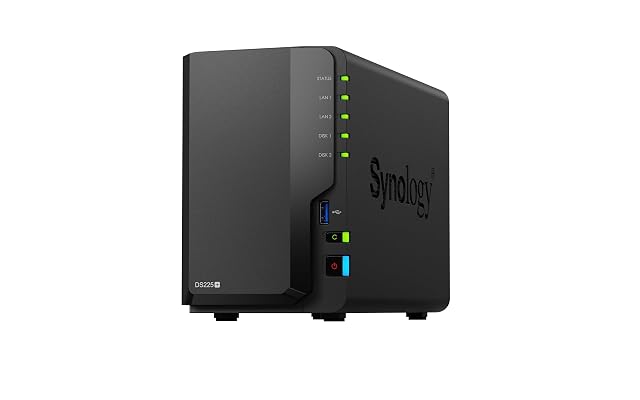
  1. Synology DS225+, two-bay enclosure whose two sockets are given two different speeds

    two bays · Intel Celeron J4125, four cores at 2.0 GHz · 2 GB DDR4 to 6 GB · two RJ-45 sockets · port speed published two ways · compatibility list required

    A two-bay enclosure that publishes its processor, its memory ceiling and the exact module that raises it, and whose title and fifth bullet disagree about how fast its two network sockets are.

    Best for: A household or small office replacing an older two-bay unit, where the applications matter more than the price and where a compatibility list is not an obstacle.

    ≈ $428 / £350 / 367 €

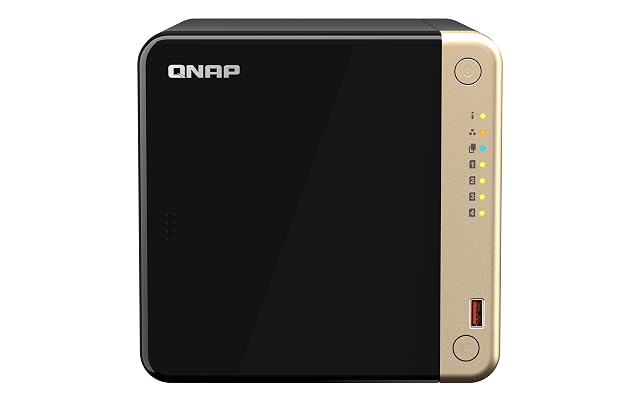
  2. QNAP TS-464, four-bay enclosure sold behind a title in the wrong language

    four bays · 8 gb of memory · four bullets that describe no product · title in Spanish on a German shop · reference printed short of the product record

    A four-bay enclosure whose page carries a bay count, a memory figure and four bullets that would fit any object at all, printed in a language the shop does not use.

    Best for: A buyer who already knows this model from elsewhere and is here only for the price, since the page itself will not tell them what they are buying.

    ≈ $840 / £677 / 719 €

  3. TERRAMASTER F4-425, four-bay enclosure with a stated 22 dB(A) and a named array scheme

    four bays · Intel x86 quad-core · 4 GB memory · one 2.5GbE socket · TRAID named · 22 dB(A) · 30 TB per bay, 120 TB in total

    A four-bay enclosure that publishes an acoustic figure, a per-bay ceiling and the name of its array scheme, and that never says what size of drive its four bays take.

    Best for: A media collection that has outgrown a two-bay unit and lives in a room where people sleep, bought by someone who will confirm the drive sizes separately.

    ≈ 345 €

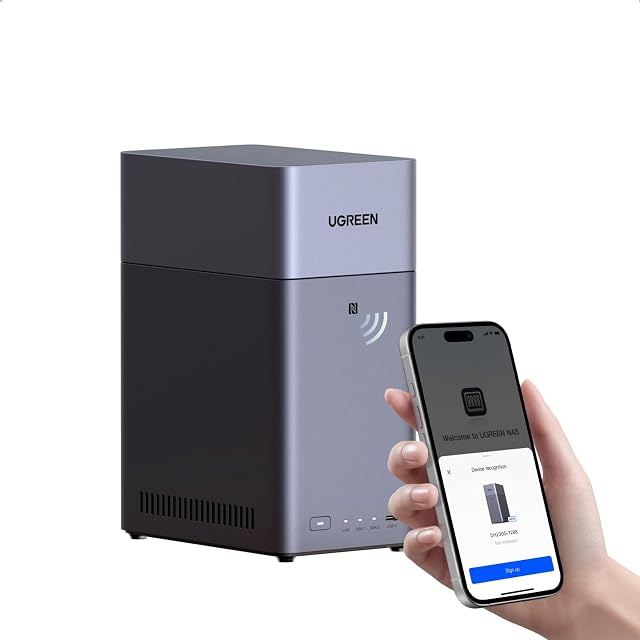
  4. UGREEN NASync DH2300, two-bay enclosure sold on what it replaces

    two bays · sold without drives · NFC pairing named · HDMI output with 4K · no processor, no memory, no Ethernet socket published

    A two-bay enclosure whose page publishes a bay count, a television output and an arithmetic of cloud subscription savings, and not one figure about the machine itself.

    Best for: A household that wants its photographs off a subscription and onto its own hardware, and that is willing to ask the seller for the specification the page leaves out.

    ≈ 199 €

  5. Asustor Drivestor 2 Lite AS1102TL, two-bay enclosure with one gigabit socket

    two bays · Realtek RTD1619B, four cores at 1.7 GHz · 1 GB DDR4 · one 1GbE socket · Btrfs and iSCSI snapshots named · sold without drives

    A two-bay enclosure whose title states the processor, the memory and the single gigabit socket, and whose page never names the drive interface, an array arrangement or the software that runs it.

    Best for: A first enclosure for a household copy of photographs and documents, where one gigabit is enough and where the buyer is content to look up the drive compatibility elsewhere.

    ≈ £198 / 183 €

The questions that come up before an order

Two bays or four?

Two is enough for a household that wants files in one place and can keep working through a drive failure. Four becomes worthwhile when a distributed redundancy scheme is wanted — the capacity given up costs proportionally less as the bay count rises — and when the collection is growing fast enough that a fifth bay is a real prospect.

Does a NAS with mirrored drives mean my files are safe?

It means the volume stays readable when a drive fails, which is what the feature was built for. A deletion, an application overwriting a folder, hostile encryption, a theft or a fire reaches every drive in the box at the same moment, because the box does faithfully what it is told. Copies held elsewhere cover those, and they are a separate purchase.

Can I put any drives in it?

Physically, most 3.5-inch drives fit most 3.5-inch bays. What differs is what the maker publishes about continuous operation, a workload rating in terabytes per year and the recording method used, and those are the figures that describe the job an enclosure asks a drive to do.

How much does the software matter?

More than the hardware, for most households. The interface, the mobile applications, the way shares and users are set up, whether snapshots exist and how updates arrive are what you meet every week; the chassis is what you meet twice.

Every price named in a summary was read on the date that review carries. What a shop asks today is shown beside the product, and it moves.

The tool we use ourselves

Chosen your hardware? Now buy it at the right price.

Routers, drives and enclosures are discounted almost continuously, and a crossed-out price tells you nothing on its own about what the same reference was charged last month. UniverTrack keeps the record of what every retailer has been asking week by week, so a discount is weighed against a price that actually stood rather than one invented for the banner, and it tells you when the moment to buy is genuinely here.

Real price historyBuy-now alertsAI buying assistant
Try free for 14 days →
No commitment · Cancel in one click · 5 languages